What is SCP?
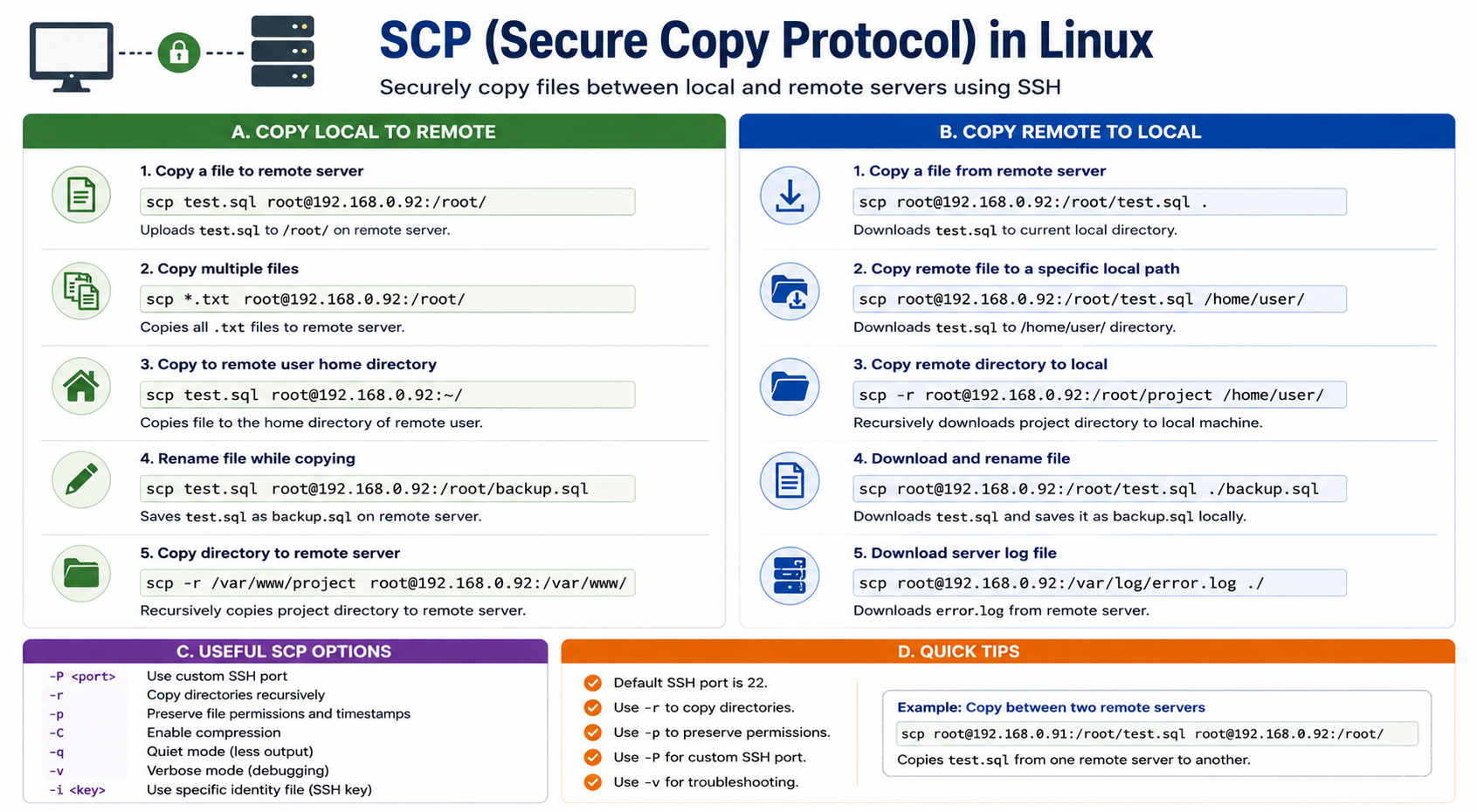
SCP allows you to copy files securely between:
Local machine to remote server
Remote server to local machine
One remote server to another remote server
Local directory to remote directory
Remote directory to local system
Basic SCP Syntax
scp [options] source destinationIn this syntax, source is the file or directory you want to copy, and destination is the location where you want to place it.
Copy File from Local to Remote Server
This is one of the most commonly used SCP commands. It uploads a file from your local system to a remote Linux server.
scp test.sql root@192.168.0.92:/root/This command copies test.sql from your local machine to the /root/ directory of the remote server.
Copy File from Remote Server to Local Machine
You can also download a file from a remote server to your local machine using SCP.
scp root@192.168.0.92:/root/test.sql .Here, the dot . means the file will be downloaded into the current local directory.
Copy File from Local to Remote with a Different Name
SCP also allows you to rename the file while copying it to the destination server.
scp test.sql root@192.168.0.92:/root/database_backup.sqlThis command uploads test.sql and saves it as database_backup.sql on the remote server.
Copy Multiple Files to Remote Server
You can copy multiple files using wildcard patterns.
scp *.txt root@192.168.0.92:/root/This command copies all .txt files from the current local directory to the remote server.
Copy File to Remote User Home Directory
To copy files to the remote user's home directory, use ~/.
scp test.sql root@192.168.0.92:~/The ~/ symbol represents the home directory of the remote user.
Copy Directory from Local to Remote Server
To copy a full directory, use the -r option. This copies the directory recursively with all files and subdirectories.
scp -r /var/www/project root@192.168.0.92:/var/www/This command copies the complete project directory to the remote server.
Copy File Using a Custom SSH Port
By default, SCP uses SSH port 22. If your SSH server is running on a custom port, use the -P option.
scp -P 2205 test.sql root@192.168.0.92:/root/This command connects to the remote server using port 2205.
Copy File Between Two Remote Servers
SCP can also transfer files directly between two remote servers.
scp root@192.168.0.91:/root/test.sql root@192.168.0.92:/root/This copies test.sql from server 192.168.0.91 to server 192.168.0.92.
Useful SCP Options
Use Custom SSH Port
scp -P 2205 test.sql root@192.168.0.92:/root/Copy Directory Recursively
scp -r /var/www/project root@192.168.0.92:/var/www/Preserve File Permissions and Timestamps
scp -p test.sql root@192.168.0.92:/root/Enable Compression
scp -C test.sql root@192.168.0.92:/root/Debug SCP Connection
scp -v test.sql root@192.168.0.92:/root/Real-World SCP Examples
Upload MySQL Backup to Remote Server
scp test.sql root@192.168.0.92:/root/Download MySQL Backup from Remote Server
scp root@192.168.0.92:/root/test.sql test.sqlUpload Laravel Project to Remote Server
scp -r /var/www/laravel-app root@192.168.0.92:/var/www/Download Apache Configuration File
scp root@192.168.0.92:/etc/apache2/sites-enabled/000-default.conf .Upload Apache Error Log
scp /var/log/apache2/error.log root@192.168.0.92:/root/logs/Common SCP Errors and Solutions
Permission Denied
Permission denied (publickey,password)This error usually means the username, password, SSH key, or file permission is incorrect.
Check the remote username
Check SSH password or private key
Verify destination folder permission
Try logging in with SSH first
ssh root@192.168.0.92Connection Refused
ssh: connect to host 192.168.0.92 port 22: Connection refusedThis means SSH may not be running, or the server is using a different SSH port.
systemctl status sshss -tulnp | grep sshNo Such File or Directory
No such file or directoryThis means the source file path or destination path is incorrect. Always verify the file path before running SCP.
ls -lh test.sqlBest Practices for SCP
Use SSH keys instead of passwords for better security.
Use a non-root user whenever possible.
Verify the destination path before copying files.
Use
-Pif SSH is running on a custom port.Use
-ronly when copying directories.Use
-vfor troubleshooting connection issues.
Conclusion
SCP is a simple, secure, and reliable command-line tool for transferring files between Linux systems. Whether you want to copy a file from local to remote, download a file from remote to local, transfer database backups, move Laravel projects, or copy server logs, SCP provides a fast and encrypted way to complete the task.
For Linux administrators, DevOps engineers, database administrators, and developers, SCP is one of the most useful commands for daily server management and secure file transfer.