Installing Nginx:
sudo apt update
sudo apt install nginx
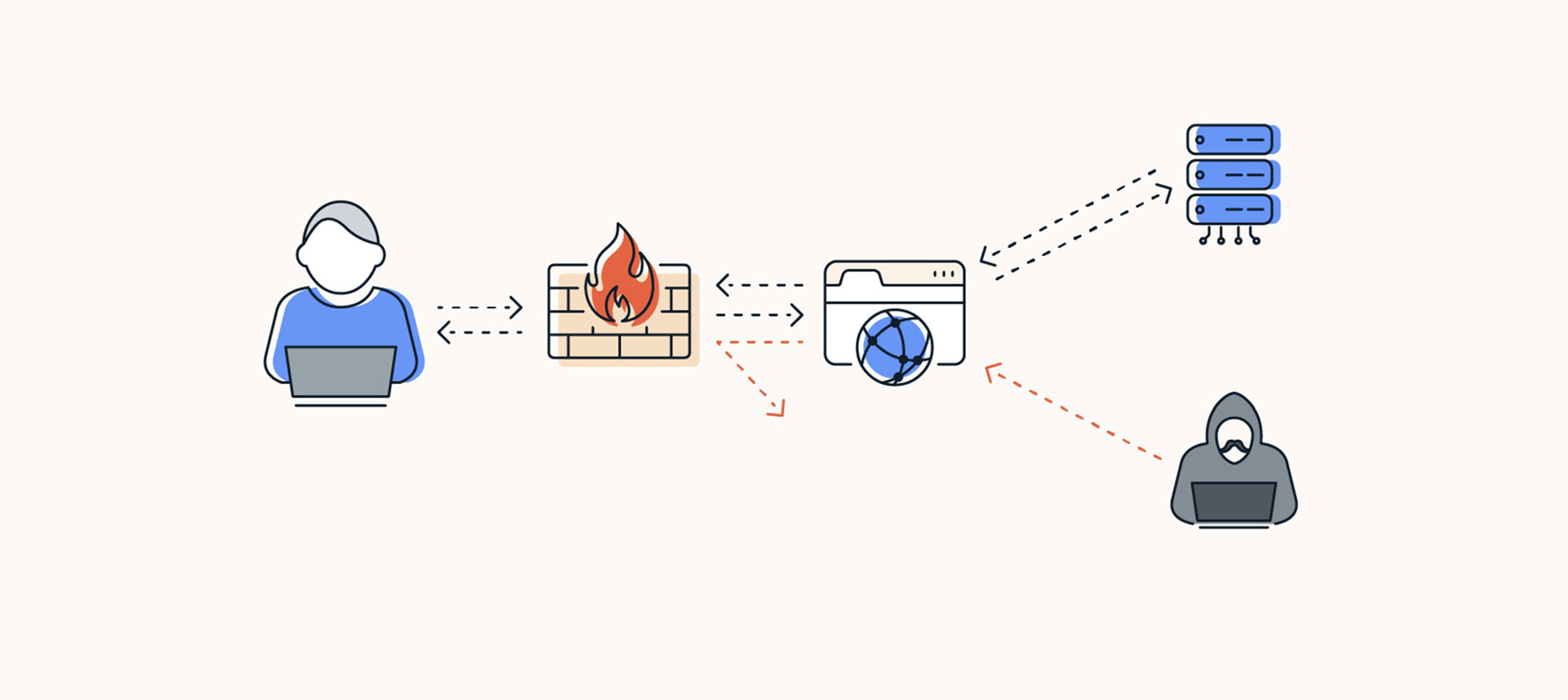
Adjusting the Firewall:
sudo ufw app list
Available applications:
Nginx Full
Nginx HTTP
Nginx HTTPS
OpenSSH
sudo ufw allow 'Nginx HTTP'
sudo ufw status
Checking your Web Server
systemctl status nginx
Managing the Nginx Process
sudo systemctl stop nginx
sudo systemctl start nginx
sudo systemctl restart nginx
sudo systemctl reload nginx
sudo systemctl disable nginx
sudo systemctl enable nginx
sudo nginx -t -c /etc/nginx/nginx.conf
Setup domain with Nginx - Install PHP with all ext:
sudo apt install php-fpm
Create a file with domain name
sudo nano /etc/nginx/sites-available/xyz.com
update matter of this domain file
server {
listen 80;
root /var/www/html;
index index.php index.html index.htm index.nginx-debian.html;
server_name xyz.com;
location / {
#try_files $uri $uri/ =404;
try_files $uri $uri/ /index.php$is_args$args;
}
location ~ \.php$ {
include snippets/fastcgi-php.conf;
fastcgi_pass unix:/var/run/php/php7.2-fpm.sock;
}
location ~ /\.ht {
deny all;
}
}
Enable simlink: sudo ln -s /etc/nginx/sites-available/xyz.com /etc/nginx/sites-enabled/
Unlink default: sudo unlink /etc/nginx/sites-enabled/default
sudo nginx -t
sudo systemctl reload nginx